Thursday, 19 July 2012

Powershell Fun (Key - Value Pairs)


Using Powershell to Import Key-Value Pairs from a file


Given a file named ConfigurationKeyValuePairs.conf with Key Value pairs that looks like: 

Key^Value
WebsiteHostName^localhost
QueryServiceHostName^localhost
ApplicationServiceHostName^localhost
ReportServerHostName^localhost
ReportServerPort^8080
IncludeExceptionDetailInFaults^true
ICacheServicePort^8050
Compilation.Debug^true   

You can extract these into a powershell variable with the following command:

Get-Content .\ConfigurationKeyValuePairs.conf | %{$configurationSettings = @{}} { if ($_ -match "(.*)\^(.*)") { $configurationSettings[$matches[1]]=$matches[2]; }}

The keys can now be referred to using 

$configurationSettings.Key


Wednesday, 18 July 2012

Windows Server 2008 Command-Line Tools Summary


Command Description
Arp Display and modify the IP to physical address translation tables used by
the Address Resolution Protocol (ARP).
Assoc Display and modify file extension associations.
Attrib Display and change file attributes.
Break Configure extended Ctrl-C checking.
Bcdedit
Configure properties in name database to control boot loading.
Cacls Display or modify access control lists of files.
Call Call a script or script label as a procedure.
CD/Chdir Display the name of or changes the current directory.
Chcp Display or set the active code page number.
Chkdsk Check a disk for errors and display a report.
Chkntfs Display the status of volumes. Set or exclude volumes from automatic system
checking during system boot.
Choice Create a selection list from which users can select a choice in batch
scripts.
Cls Clear the console window.
Cmd Start a new instance of the Windows command shell.
Color Set the colors of the command-shell window.
Comp Compare the contents of two files or sets of files.
Compact Display or modify the compression of files or sets of files.
Convert Convert FAT volumes to NTFS.
Copy Copy or combine files.
Date Display or set the system date.
Del Delete one or more files.
Dir Display a list of files and subdirectories within a directory.
Diskcomp Compare the contents of two floppy disks.
Diskcopy Copy the contents of one floppy disk to another.
Diskpart Invoke a text-mode command interpreter so that you can manage disks,
partitions, and volumes using a separate command prompt and commands that
are internal to Diskpart.
Doskey Edit command lines, recall Windows commands, and create macros.
Driverquery Display the current device driver properties and status.
Echo Display messages, or turns command echoing on or off.
Endlocal End localization of environment changes in a batch file.
Erase See Del.
Exit Exit the command interpreter.
Expand Uncompress files.
FC Compare two files and display the differences between them.
Find/Findstr Search for a text string in files.
For Run a specified command for each file in a set of files.
Format Format a floppy disk or hard drive.
Fsutil File system utility - displays and configures file system properties.
Ftp Transfer files.
Ftype Display or modify file types used in file extension associations
Goto Direct the Windows command interpreter to a labeled line in a script.
Gpresult Display Group Policy information for a machine or user.
Graftabl Enable Windows to display extended character sets in graphics mode.
Help Display Help information for Windows commands.
Hostname Display the computer name.
ICACLS Display, modify, backup, and restore ACLs for files and directories.
IF Perform conditional processing in batch programs.
Ipconfig Display TCP/IP configuration.
Label Create, change, or delete the volume label of a disk.
Md/Mkdir Create a directory or subdirectory.
Mklink Create symbolic and hard links.
Mode Configure a system device.
More Display output one screen at a time.
Mountvol Manage a volume mount point.
Move Move files from one directory to another directory on the same drive.
Openfiles Display files opened by remote users for a file share.
Nbtstat Display status of NetBIOS.
Net Accounts Manage user account and password policies.
Net Computer Add or remove computers from a domain.
Net Config Server Display or modify configuration of Server service.
Net Config Workstation Display or modify configuration of Workstation service.
Net Continue Resume a paused service.
Net File Display or manage open files on a server.
Net Group Display or manage global groups.
Net Localgroup Display or manage local group accounts.
Net Pause Suspend a service.
Net Print Display or manage print jobs and shared queues.
Net Session List or disconnect sessions.
Net Share Display or manage shared printers and directories.
Net Start List or start network services.
Net Statistics Display workstation and server statistics.
Net Stop Stop services.
Net Time Display or synchronize network time.
Net Use Display or manage remote connections.
Net User Display or manage local user accounts.
Net View Display network resources or computers.
Netsh Invoke a separate command prompt that allows you to manage the
configuration of various network services on local and remote computers.
Netstat Display status of network connections.
Path Display or set a search path for executable files in the current command
window.
Pathping Trace routes and provides packet loss information.
Pause Suspend processing of a script and wait for keyboard input.
Ping Determine if a network connection can be established.
Popd Change to the directory stored by Pushd.
Print Print a text file.
Prompt Change the Windows command prompt.
Pushd Save the current directory then changes to a new directory.
Rd/Rmdir Remove a directory.
Recover Recover readable information from a bad or defective disk.
Reg Add Add a new subkey or entry to the Registry.
Reg Compare Compare Registry subkeys or entries.
Reg Copy Copy a Registry entry to a specified key path on a local or remote system.
Reg Delete Delete a subkey or entries from the Registry.
Reg Query List the entries under a key and the names of subkeys (if any).
Reg Restore Write saved subkeys and entries back to the Registry.
Reg Save Save a copy of specified subkeys, entries, and values to a file.
Regsvr32 Register and unregister DLLs.
Rem Add comments to scripts.
Ren Rename a file.
Replace Replace a file.
Route Manage network routing tables.
Rmdir Remove a directory.
Set Display or modify Windows environment variables. Also used to evaluate
numeric expressions at the command line.
Setlocal Begin localization of environment changes in a batch file.
Sc Display and configure background processes (services).
Schtasks Schedule commands and programs to run on a system.
Sfc Scans and verifies protected operating system files.
Shift Shifts the position of replaceable parameters in scripts.
Shutdown Perform system shutdown.
Sort Sort input.
Start Start a new command-shell window to run a specified program or command.
Subst Maps a path to a drive letter.
Systeminfo Display machine properties and configuration.
Tasklist Display currently running tasks and services.
Taskkill Kill or stop a running process or application.
Time Display or sets the system time.
Title Sets the title for the command-shell window.
Tracert Display the path between computers.
Tree Graphically displays the directory structure of a drive or path.
Type Display the contents of a text file.
Ver Display the Windows version.
Verify Tells Windows whether to verify that your files are written correctly to a
disk.
Vol Display a disk volume label and serial number.
Xcopy Copy files and directories.
WMI Display WMI information.

Monday, 2 July 2012

Scraping HTML Table data into a Google Docs Spreadsheet


Tried something interesting today.

I needed to scrape the Root Zone Database data from the Internet Assigned Numbers Authority (IANA) website at [http://www.iana.org/domains/root/db] .So I imported the data to a google docs spreadsheet and then exported it to a csv as follows:

  1. Create a new Google Docs spreadsheet
  2. In the first row, import the data using the ImportHtml() function with the following syntax [=ImportHtml("http://www.iana.org/domains/root/db","table",0) ] 
  3. This should now populate the rest of the table with the data from the web page.
  4. I can now download the spreadsheet as a csv ( File ⇒ Download as ⇒ Comma Separated Values )


Thursday, 28 June 2012

Expanding TFS 2010 Database post Lab Management setup

Monday Morning:

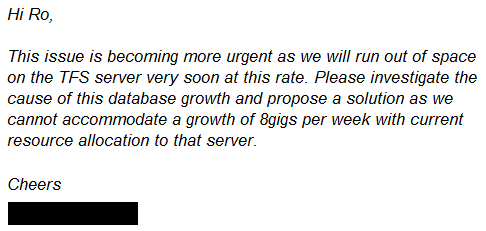
I usually love Mondays. A brand new week, so much to look forward to, UNLESS you get an angry email from your System Administrator & you know you have a plethora of other development tasks you need to finish this week.

The Email:


Findings:

After some digging around, here is what I had discovered:

  • Our Team Foundation Server database [it uses Microsoft SQL Server 2008 (RTM) - 10.0.1600.22 (X64)]
  • The highest recorded growth was in the following few tables


Post our initial investigation, it became clear that TFS had decided to store binary build objects in the attachment tables after we had set-up Lab Management & decided to use Test Driven Development (Unit Tests run on Gated Check Ins, Unit + Integration Tests run on Nightly Builds & Unit + Integration + UI Tests run on Staged & Release Builds.) I wrote the following scripts:


It was interesting to see that on every test run (triggered by a Gated Check In or a Release/Staged build) we were adding > 250 files to the Attachment Content table. Yikes!! This was looking more and more like an episode of  "When good servers go bad!"

Test Attachment Cleaner:

A couple of interesting google searches later I discovered the Test Attachment Cleaner [http://visualstudiogallery.msdn.microsoft.com/3d37ce86-05f1-4165-957c-26aaa5ea1010/]


The MSI installs itself to "C:\Program Files (x86)\Microsoft\Test Attachment Cleaner". The readme file explained it all ...

In Dev10, with the introduction of Visual Studio Test Professional 2010 & Visual Studio Premium/Ultimate 2010, testers can author manual and automated Test cases, configure the different diagnostic data collectors (as part of Test Settings), associate the Test Settings with Test Plan/Suites and then execute these test cases as part of Test Runs. The execution of a Test Run (whether automated or manual) generates a bunch of diagnostic data, which may be captured either automatically by the system or manually by the tester. This diagnostic data is critical in eliminating the “no repro” bug scenarios between the testers and developers. However, the downside of this rich diagnostic data captures is that the system/user generated diagnostic data, over a period of time, can grow at a rapid pace and start taking up database space.

With Dev10, the database admin has little or no control over what data gets attached as part of Test Runs – i.e., there are no policy settings he can control to limit the size of the data capture OR no retention policy to determine how long to hold this data before initiating a cleanup. In such scenarios, the Admin has no mechanism to:

a.       Determine which set of diagnostic captures is taking up how much space AND
b.      Reclaim the space for runs which are no longer relevant from business perspective.

The “Test Attachment Cleaner” tool fills this void by serving both the above points. 

I ran the following commands on each project:

tcmpt.exe attachmentcleanup /collection:http://localhost:8080/tfs/TFS2008_Migrated_Projects /teamProject: ProjectName  /settingsFile:.\SampleSettings\CustomScenario.xml /mode:Preview


tcmpt.exe attachmentcleanup /collection:http://localhost:8080/tfs/TFS2008_Migrated_Projects /teamProject:ProjectName /settingsFile:.\SampleSettings\CustomScenario.xml /mode:Delete

The CustomScenario xml file I used was as follows:


Additional Patches & Test Settings:

Additionally, it turns out that we needed the following patches/updates/hotfixes applied to TFS:
  1. Microsoft Team Foundation Server 2010 Service Pack 1: http://support.microsoft.com/kb/2182621
  2. Cumulative update package 2 for Visual Studio Team Foundation Server 2010 Service Pack 1: http://support.microsoft.com/kb/2643415#appliesto
  3. A hotfix that can reduce the size of the test data saved to the TFS database is available for Team Foundation Server 2010 Service Pack 1: http://support.microsoft.com/kb/2608743


Also, we need to ensure that the test settings file referenced in the build has the "Enable Deployment" option unchecked.


Post these updates, our test runs showed a significant reduction in the attachments saved to TFS as shown by the following query:


Monday, 11 June 2012

Writing your own JQuery Plugin and Widget


Ok, I'll admit it. When I was initially asked to work on the front-end components of our web application, I wasn't too happy. I thought I'd be writitng lines and lines of procedural Javascript code because Javascript is an inadequate language which does not supoort OOP principles ... or so I thought.

A few pluralsight videos later I discovered how JQuery was a brilliant JavaScript library that just simplified way I wrote javascript. Don't get me wrong, There is still room for improvement but it does let you do some pretty funky things.

In this post I'll be talking about writing your very own JQuery plugin and widget. My main reason of writing this post was for it to facilitate as a prequel to my next post about wrapping the Slick Grid. I've used a lot of recommendations from Project Silk.

So here we go ..


JavaScript, jQuery and jQuery UI.


JavaScript is a client-side scripting language, and also a prototyping language which means that its objects can have properties added dynamically at any time. The language itself is fine, but can be quite frustrating when different browsers get involved, and there are a few things that need smoothing over.

So, this is where jQuery steps in. jQuery is a JavaScript library that's been developed to get rid of most of those annoyances. The library simplifies a lot of common tasks, such as:
  • Selection, traversal and modification of DOM elements
  • Making AJAX requests
  • Cross-browser support (this is built into jQuery and virtually becomes a non-issue)
  • Extensibility and modular development with plugins and jQuery UI widgets
jQuery UI is a plugin for the jQuery library, that simplifies the process of creating specialised widgets to use in the web. You can think of widgets as being similar to ASP.NET user controls. A jQuery widget is targetted at an HTML element, and augments that element with richer functionality. You might have a simple, empty <div>, which is then used by a jQuery widget to display a customisable grid, or a text <input> that is turned into a date/time picker, or an autocomplete input.

JavaScript Objects, jQuery Plugins, and jQuery UI Widgets

Most of the client-side code that you're writing will fall into one of three categories:
  • UI Modules - Adding, removing and modifying UI elements
  • Behavioural Modules - Adding behaviour to elements
  • Infrastructural Modules - Completely separate from UI concerns
And the types of objects we work with will be:
  • JavaScript Objects - Collection of properties which may be functions, or just simple data.
  • jQuery Plugins - Extending the functionality of the jQuery framework
  • jQuery UI Widgets - Similar to User Controls, associated with HTML / DOM elements, encapsulates complexity

JavaScript Objects

These can be:
  • Native objects - Supplied by JavaScript, e.g. String, Number, Array, Image, Date, Math... etc.
  • Host objects - Supplied by the client/browser environment, e.g. window, document, forms... etc.
  • User-Defined objects - Defined by you, the programmer.

jQuery Plugins

Notice how an anonymous function is declared, which accepts a single argument ($). On the final line, the anonymous function is called with (jQuery).


The plugin itself is defined within an object, which is passed to jQuery's extend function.


jQuery UI Widgets

This offers a clear way of developing widgets that will require some setup, cleanup and a way of passing arguments in (similar to a normal constructor).

Some of the standards functions in a jQuery UI widget are:
  • _create - Used to perform all the general setup and attaching bindings to various different elements, instantiating children and injecting elements into the HTML as necessary.
  • destroy - Used to perform a complete cleanup of the widget and its elements.
  • options - Allows us to pass options into the widget when it is being instatiated.

Project Silk Recommendations