The purpose of this repository is to help run a simple tutorial on how to integrate .NET applications with ApacheMQ using the NMS library.
If you'd like to follow the tutorial, please head to the wiki page & read the "Tutorial". Be sure to read the other pages before you commence the actual tutorial so that you understand important concepts.
Overview
Message Queues enable applications running at different times to communicate across heterogeneous networks and systems that may be temporarily offline. Applications send messages to queues and read messages from queues. The following illustration shows how a queue can hold messages that are generated by multiple sending applications and read by multiple receiving applications.

Apache ActiveMQ ™ is one the most popular and powerful open source messaging and Integration Patterns server. Based on JMS, it allows an asynchronous communication mechanism in the distributed system field. It is fast, supports many Cross Language Clients and Protocols, comes with easy to use Enterprise Integration Patterns and many advanced features while fully supporting JMS 1.1 and J2EE 1.4. Also, it is released under the Apache 2.0 License.
ActiveMQ has a .NET Messaging API called NMS which is easily accessible via the nuget feed. The NMS API This allows you to build .NET applications in C#, VB, or any other .NET language, using a single API to connect to multiple different providers using a JMS style API.
The purpose of this repository is to help run a simple tutorial on how to integrate .NET applications with ApacheMQ using the NMS library.
Why use message queues
Message queues today form a vital component of most enterprise scale applications.
Here are some of the top reasons for using message queues. A more detailed explanation is available at the following link.
- Decoupling
- Redundancy
- Scalability
- Elasticity & Spikability
- Resiliency
- Delivery Guarantees
- Asynchronous Communication
Before we begin, its important to understand a few basic concepts.
Basic Concepts
Characteristics of messaging services
- Messages can be consumed sync or async
- Consumers can filter which message they receive
- Messages are placed in Destination in sent order
- Message consumption order cannot be guaranteed
Message Models
- Point-to-Point or P2P (Queuing Model)
- Publisher-Subscriber or Pub-Sub (eg: Topic)
Queue
- A JMS Queue implements load balancer semantics. A single message will be received by exactly one consumer.
- If there are no consumers available at the time the message is sent it will be kept until a consumer is available that can process the message.
- If a consumer receives a message and does not acknowledge it before closing then the message will be redelivered to another consumer. A queue can have many consumers with messages load balanced across the available consumers.
- So Queues implement a reliable load balancer in JMS.
- Can be thought of as a staging area that contains messages that have been sent and are waiting to be read.
- Note that, contrary to what the name queue suggests, messages don't have to be delivered in the order sent. If the message driven bean pool contains more than one instance then messages can be processed concurrently and thus it is possible that a later message is processed sooner than an earlier one.
- A JMS queue only guarantees that each message is processed only once.
Topic
- A distribution mechanism for publishing messages that are delivered to multiple subscribers.
- A good analogy for this is an anonymous bulletin board.
- In JMS a Topic implements publish and subscribe semantics.
- When you publish a message it goes to all the subscribers who are interested - so zero to many subscribers will receive a copy of the message.
- Only subscribers who had an active subscription at the time the broker receives the message will get a copy of the message.
What we're trying to develop for the tutorial
For the purpose of this tutorial you will be developing a simple chat client application as shown in the image below.
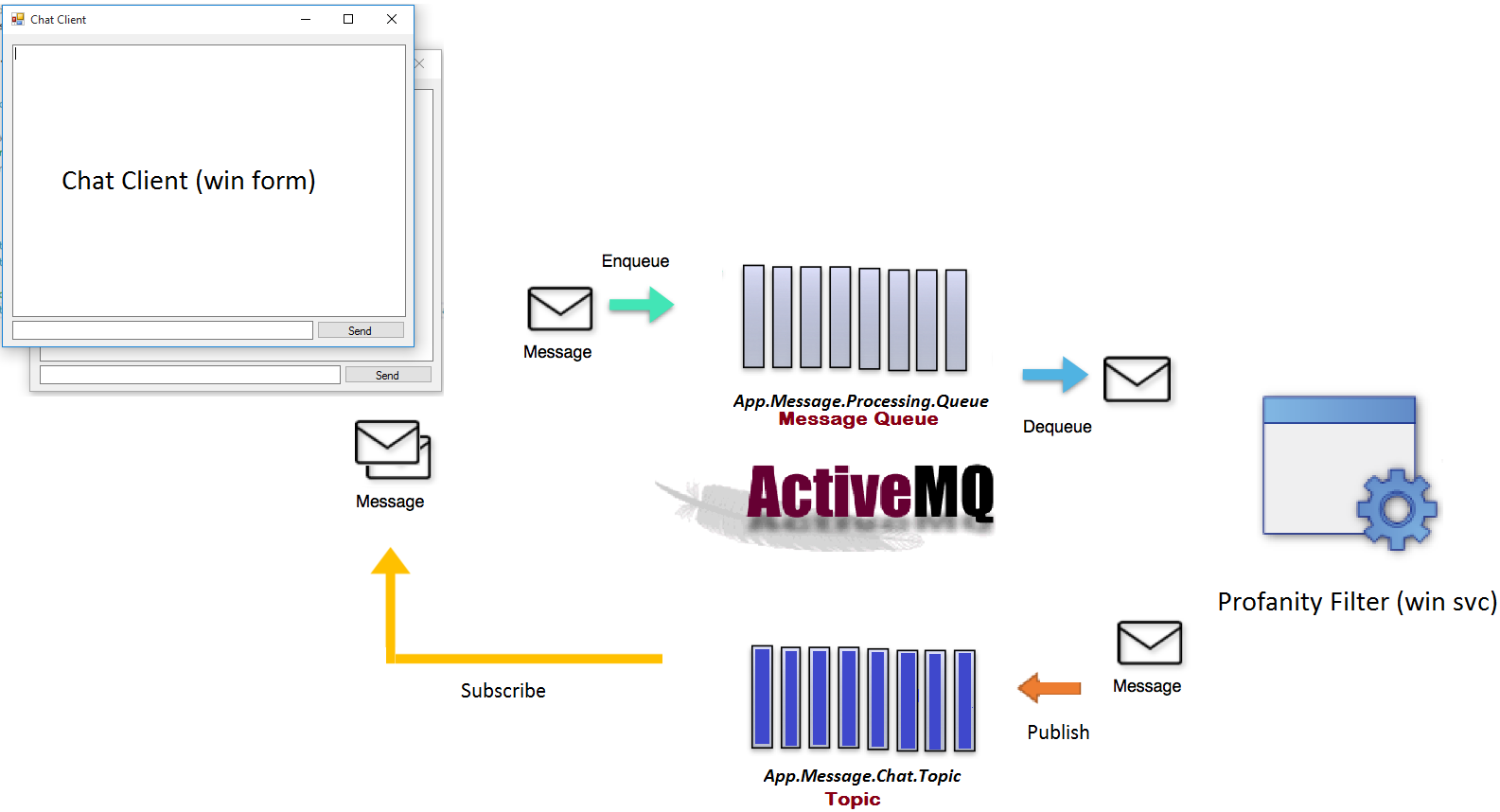
As shown in the diagram above, you will be developing a .NET solution (Tutorial.sln) with the following projects:
- Tutorial.Chat.Ui
- This project is a simple windows forms project which will server as the UI for the appliction.
- The UI will accept uer inputs & send/enqueue them to a Queue ("App.Message.Processing.Queue") for being processed.
- The UI will also be listening/subscrbing to a Topic ("App.Message.Chat.Topic") for processed messages.
- Tutorial.ProfanityFilter.Svc
- This project is a simple windows service applicaion which will be responsible for accepting messages from the UI and running them through a simple profanity filter.
- The service will listen/dequeue messages from the aforementioned Queue ("App.Message.Processing.Queue") for processing messages.
- The service will then send/publish processed messages to the aforementioned Topic ("App.Message.Chat.Topic") for being consumed by the UI.
Before you begin
Before you begin, you will need to install some prerequisites to get this working.
- You will need JDK (You can google the relevant help doco).
- Make sure post installation the JDK bin is added to your path.
- You will also need to setup the "JAVA_HOME" path. I'm on a windows machine so mine is set to "C:\Program Files\Java\jdk1.8.0_91"
- You will need to download the latest release of Active MQ available here.
- To help you with the setup of ActiveMQ, you can lookup the help doco at http://activemq.apache.org/getting-started.html.
Start ActiveMQ
- You will need to navigate to the appropriate folder within the "bin" directory & run the activemq batch/script. In my case, its "apache-activemq-5.14.1-bin\apache-activemq-5.14.1\bin\win64\activemq.bat"
- On startup, the console should give you the different ports where activemq is listening. In my case it was:jvm 1 | INFO | Apache ActiveMQ 5.14.1 (localhost, ID:localhost-56683-1476933442897-0:1) is startingjvm 1 | INFO | Listening for connections at: tcp://localhost:61616?maximumConnections=1000&wireFormat.maxFrameSize=104857600jvm 1 | INFO | Connector openwire startedjvm 1 | INFO | Listening for connections at: amqp://localhost:5672?maximumConnections=1000&wireFormat.maxFrameSize=104857600jvm 1 | INFO | Connector amqp startedjvm 1 | INFO | Listening for connections at: stomp://localhost:61613?maximumConnections=1000&wireFormat.maxFrameSize=104857600jvm 1 | INFO | Connector stomp startedjvm 1 | INFO | Listening for connections at: mqtt://localhost:1883?maximumConnections=1000&wireFormat.maxFrameSize=104857600jvm 1 | INFO | Connector mqtt startedAdditionally, the web console should be available at port 8161 based on the following log line:jvm 1 | INFO | ActiveMQ WebConsole available at http://localhost:8161/To test your installation, you can:
- open the above link in a browser
- Click "Manage ActiveMQ broker"
- Enter the default username & password which is admin
- Play around with the UI. This will help you better understand how to administer the message broker.

Tutorial Steps
The tutorial steps have been listed on the wiki page available at https://github.com/rohit-lakhanpal/apache-activemq-nms-tutorial/wiki/Tutorial


